PIGMI
palette drawing software
Download
GitHub
macOS
Windows
Linux

ONE MATERIAL

For everything you want

About

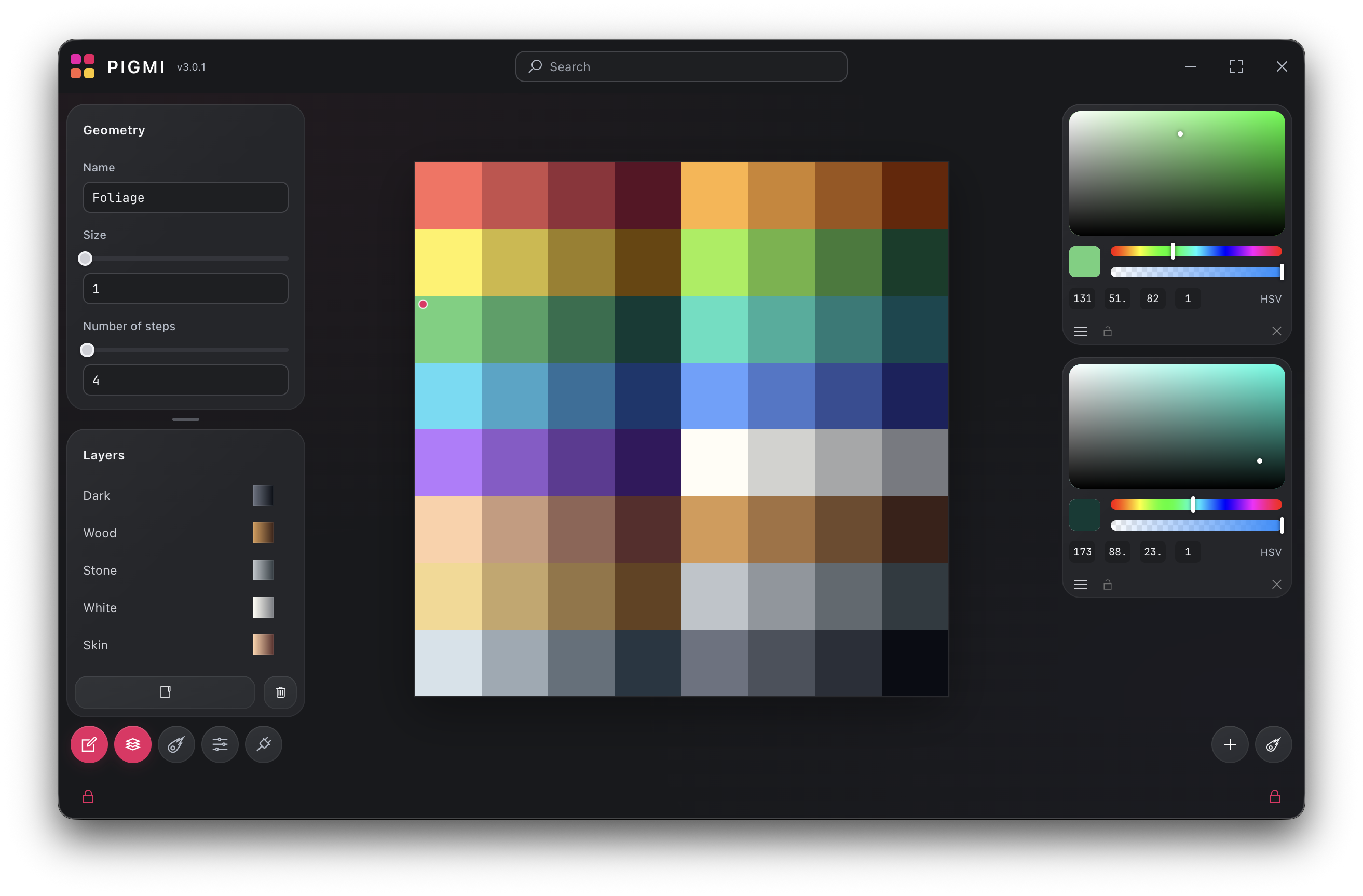
PIGMI (formerly known as PalettePainter) is designed to simplify the creation and editing of texture palettes.

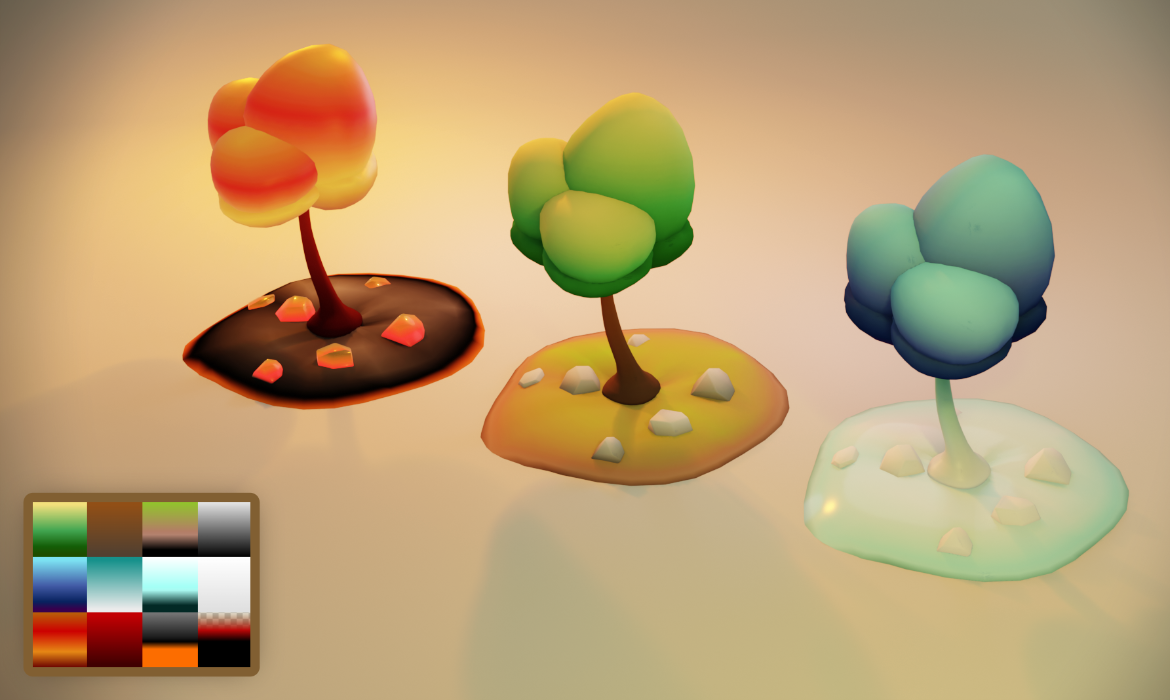
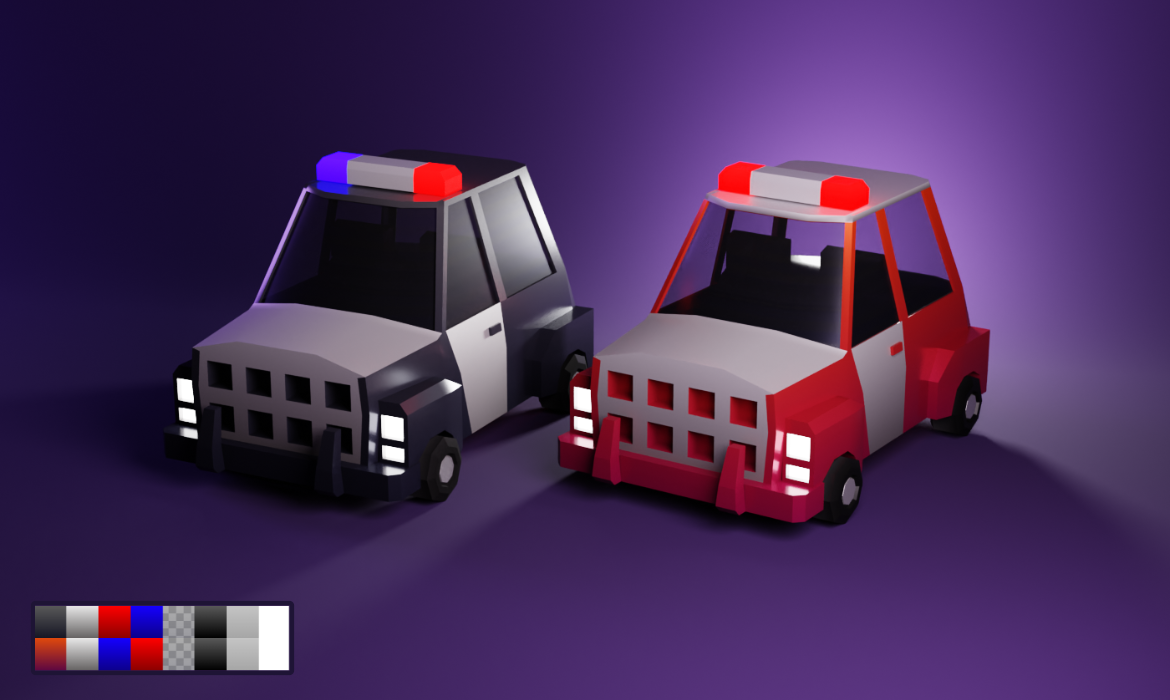
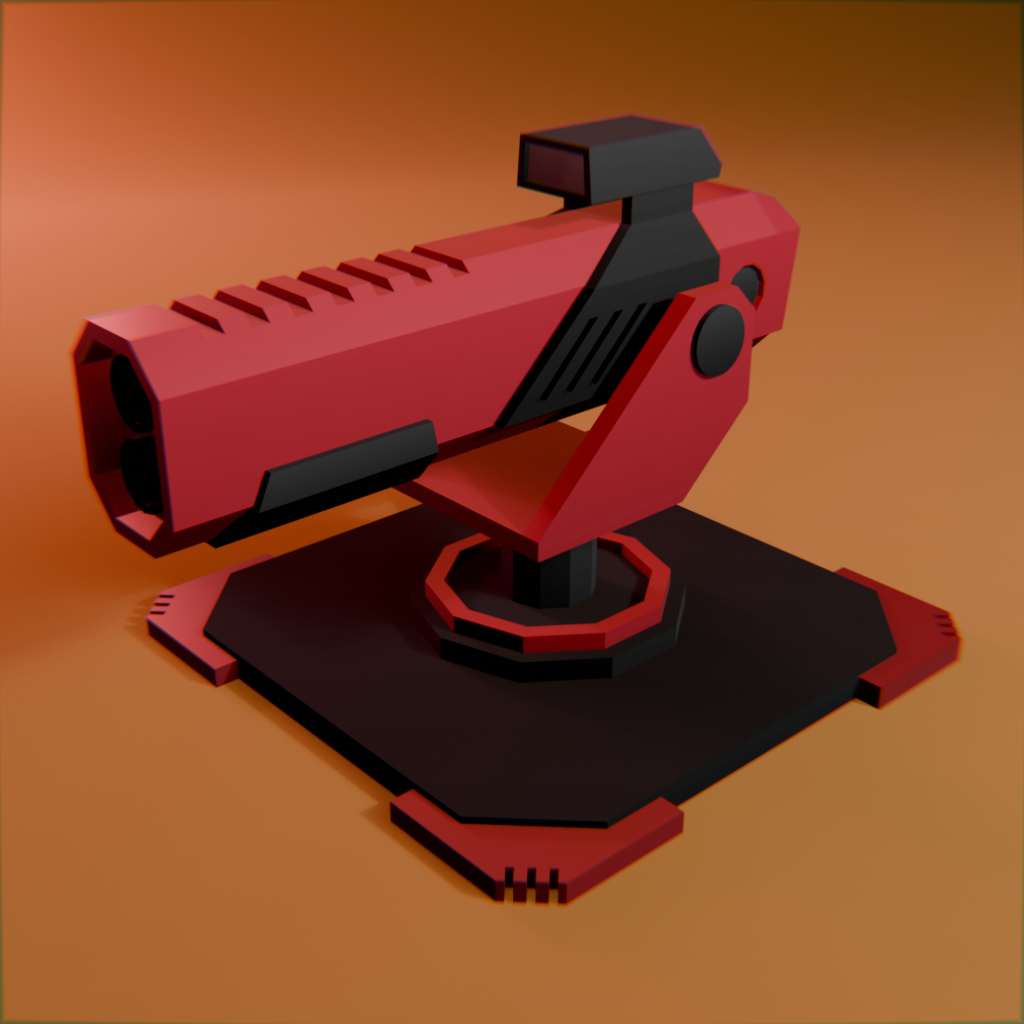
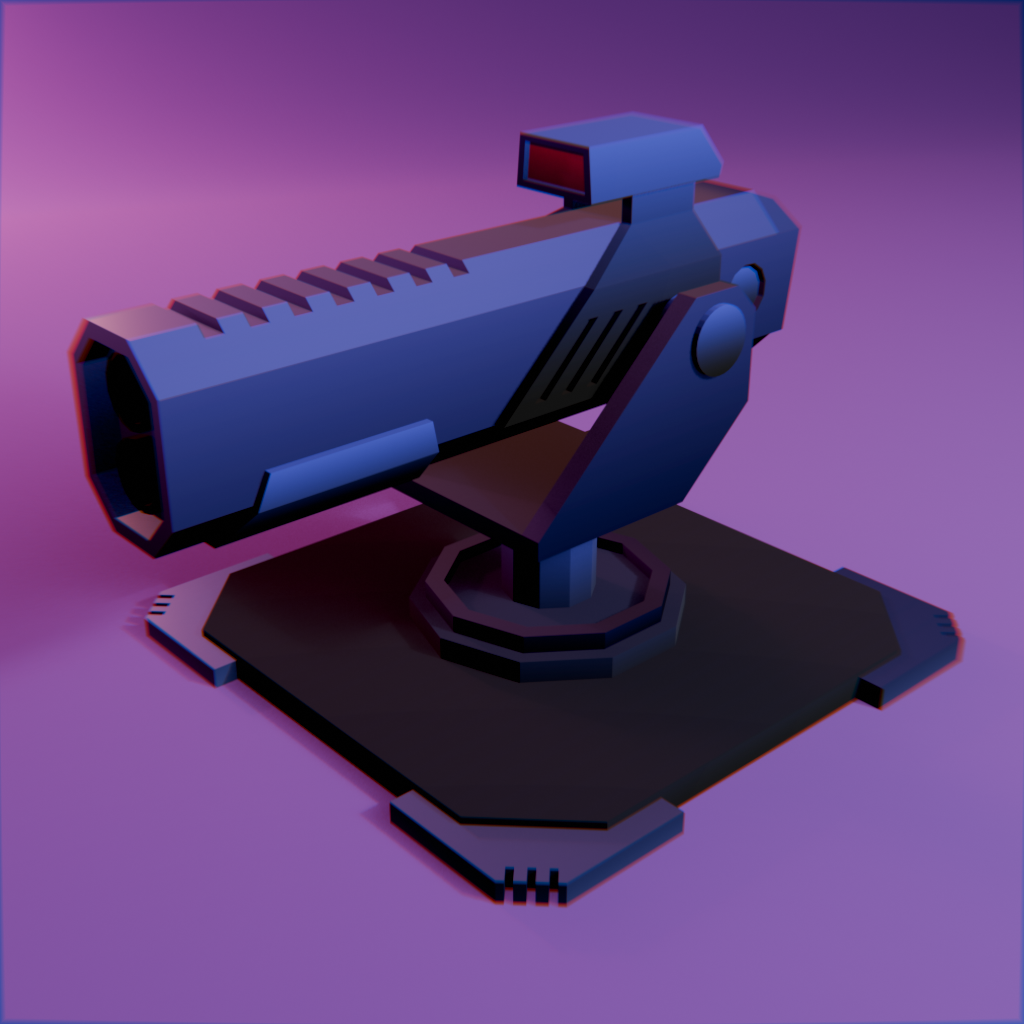
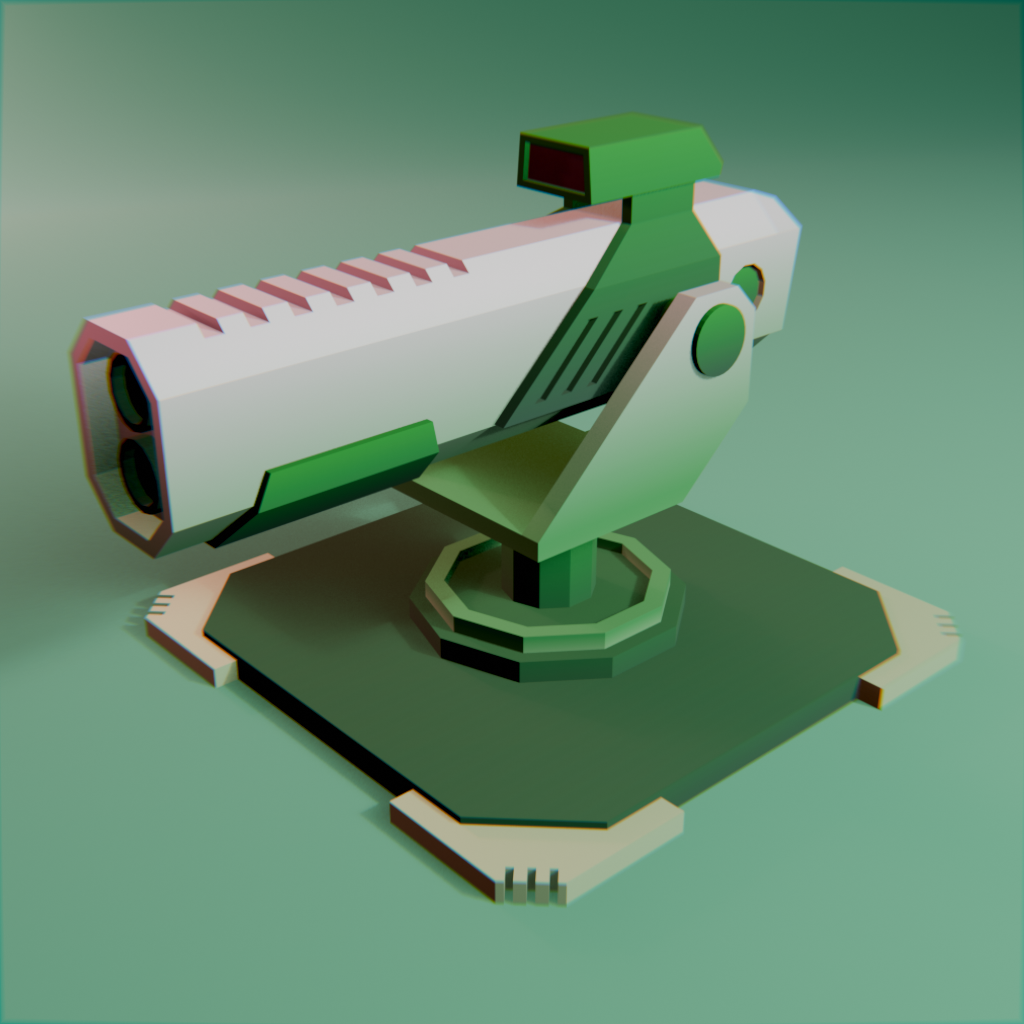
Texture palettes are often used for low-poly models: they let you texture every model in a game with one small texture, such as 64 × 64 pixels.

Feel free to use Metallic, Roughness, Clearcoat, Clearcoat Roughness and Emission in your materials.

Set different values for each color cell and texture all your models with a single material.

FEATURES

You will like it!

Easy to use
Manage and search all your palette items. Adjust sizes, colors, gradient types and much more.
Game ready
Pigmi exports PNG, WEBP and packed textures for games and realtime projects.
PBR Workflow
Use Metallic, Roughness, Clearcoat, Clearcoat Roughness and Emission.
Realtime sync
See changes instantly. Project JSON and enabled texture maps update automatically.

USAGE AND CONTROLS

All under control!

Getting started
  • Run Pigmi
  • Set the texture size, snapping step, zoom and other settings
  • Choose a project folder
  • Enter a texture name and click Create, or select an existing texture from the list
  • Click Load and sync to open an existing texture, or Overwrite and sync to replace the previous file
Base controls
  • Left-click empty canvas space to create an item, or left-click an item to select it
  • Right-click an item to remove it immediately; right-click empty space to clear the selection
  • LMB + drag moves items with grid snapping
  • Command/Ctrl + LMB adds items to or removes them from the multi-selection
  • Mouse wheel zooms toward the pointer; middle-button drag pans the canvas
Layers

Organize palette items in an ordered tree with nested folders, multi-selection, visibility controls, isolation, renaming and drag-and-drop reordering. Copy and paste preserves folders, colors, materials and relative positions.

  • Command/Ctrl + click — add or remove layers from the selection
  • Shift + click — select a sibling range
  • Alt + visibility — isolate an item or folder branch
  • Command/Ctrl + C, X or V — copy, cut or paste layers
  • Delete — remove selected layers; Enter / Escape — confirm or cancel renaming
MCP automation

Connect Pigmi to Codex or another compatible MCP client and edit the active document with natural-language requests. The bundled local server can inspect the layer tree, create and recolor items, move them into folders, edit PBR values, change export settings, save projects and undo changes.

  • Open the plug tab in Pigmi and copy the generated connection command
  • Run it once, restart Codex and open /mcp to confirm that Pigmi is enabled
  • Keep Pigmi running with the required document open while the client works
  • Changes are revision-checked and applied atomically to protect newer edits
MRC texture

An MRC texture contains four maps in separate color channels. In Blender, set Alpha to Channel Packed so the alpha channel does not distort the colors.

R
Metallic
G
Roughness
B
Clearcoat
A
Clearcoat roughness
Texture mixing

Pigmi can combine an existing texture with a generated map. Put a PNG of the same resolution beside the project and name it like palette_albedo_mix.png.

Use roughness, metallic, clearcoat, clearcoat_roughness or mrc instead of albedo for the other maps.

BLENDER ADDONS

Three focused helpers for moving palette workflows into Blender.

UV to Palette

Fits selected UVs into palette cells, can project selected polygons from the current 3D View, select polygons by palette cell, and map gradients across a mesh by a drawn path, radius, distance source or cavity / fake AO.

  • Tab + LMB — draw a gradient path over the mesh
  • Tab + Shift + LMB — pick an object as the distance-gradient source
  • Shift + click a palette cell — apply a radial gradient
  • Command/Ctrl + click a palette cell — apply the cavity gradient
  • Enter — finish; RMB / Escape — stop painting
  • Alt/Option + click a palette cell — run Project from View for the selected polygons and fit the result into that cell
  • Shift + Ctrl/Cmd + click a palette cell — select every polygon whose UVs are inside that cell
  • LMB + drag in the UV Editor — box-select UVs while Painting mode is active; hold Shift to add or Ctrl/Cmd to subtract
Highlighter

Paints vertex colors on a mesh with an editable palette, RGBA controls, quick white, black and transparent fills, adjustable radius and falloff, plus a non-destructive preview that can be saved or restored.

  • No default hotkeys — all actions are available in View3D → Tool → Pigmi: Highlighter
  • Apply — paints the current selection; Save / Restore — commits or cancels the preview
  • Auto Apply — updates colors while the controls are adjusted
Face to Face

Saves a selected mesh part from an active face or edge, then attaches it to a target face or edge. It can duplicate the part onto several targets and keeps rotation, flip, scale and selection-restore options in Blender's Adjust Last Operation panel.

  • Shift + F — save the selected mesh part on the first call, then attach it on the next call
  • Shift + Ctrl + F — cancel the saved snapping session

DOWNLOADS

Get the latest version!

Main
Pigmi v2.0.3
Latest release for macOS, Windows and Linux
GitHub
Pigmi source code
Documentation, source and release notes
GitHub
Blender addons
UV to Palette
Palette-cell UV mapping, Project from View, cell selection and surface gradients
GitHub
Highlighter
Vertex-color painting, palettes and quick fills
GitHub
Face to Face
Attach selected mesh parts to target faces or edges
GitHub
© Pigmi, 2003-2026
All rights reserved